6 Strange Reasons Your Computer Fan Speeds Up
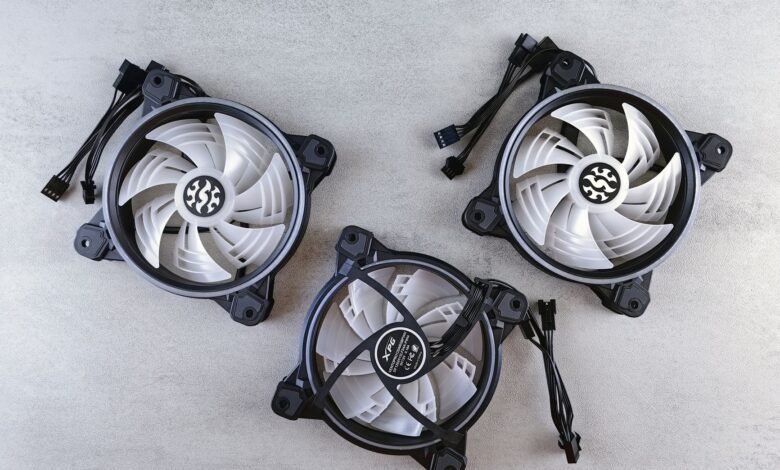
A modern laptop CPU can go from idle to generating enough heat to fry an egg — reaching temperatures above 100°C — in under three seconds when a demanding app launches. Your fan has less time to react than you do.
Your computer fan speed jumping from whisper-quiet to jet-engine-loud the moment you open Chrome, Photoshop, or a video game isn’t a coincidence — it’s your machine screaming for survival. That whirring sound is one of the most honest things your computer will ever tell you, and most people just find it annoying.
Here’s the weird part: your fan isn’t reacting to the app itself. It’s reacting to what happens inside your processor the instant that app makes a demand. It’s a chain reaction of physics, software, and engineering desperation that unfolds in milliseconds.
Understanding why this happens doesn’t just satisfy the 3am curiosity itch — it actually tells you a lot about whether your machine is healthy, overworked, or quietly cooking itself alive. Let’s break it down in a way that actually makes sense.
🎯 Key Takeaways
- Computer fan speed is controlled by thermal sensors, not by the app directly — heat triggers the fan, not code.
- A CPU can spike to full load within milliseconds of an app launching, generating intense heat almost instantly.
- Some apps like browsers secretly run dozens of background processes that continuously spike CPU usage.
- Thermal throttling kicks in when fans can’t keep up — your processor literally slows itself down to avoid damage.
- Dust buildup as thin as 1mm inside a laptop can increase internal temperatures by up to 30%, making fans work far harder.
Why Computer Fan Speed Is Really About Heat, Not Apps
The Thermal Sensor Chain Reaction
The most important thing to understand about computer fan speed is that your fan has no idea what app you just opened. It doesn’t read software. It doesn’t know the difference between Spotify and a 4K video editor. What it does know — obsessively, constantly, thousands of times per second — is temperature.
Inside your CPU and GPU are tiny thermal sensors that report temperatures back to a chip called the Embedded Controller (EC) or the system’s thermal management unit. This little gatekeeper reads those temperatures and sends voltage signals to the fan motor. More heat equals more voltage equals faster spinning. It’s beautifully, brutally simple.
When you open a demanding app, here’s what actually happens in order: the app requests CPU and GPU resources, those processors start executing millions of instructions per second, electrical resistance in the processor generates heat as a byproduct, the thermal sensors detect the temperature climbing, and the controller ramps up the fan. The whole sequence can happen in under half a second.
This is why you sometimes hear the fan spin up a beat or two after you open an app rather than instantly — it’s not lag, it’s physics. Heat has to physically accumulate before the sensors register a meaningful enough change to command a speed increase. Your fan is always slightly behind the heat, playing catch-up like a firefighter who arrives thirty seconds after the fire starts.
Why Some Apps Trigger a Bigger Response Than Others
Not all apps are equal when it comes to CPU usage spike intensity. A simple text editor asks almost nothing of your processor. A video game asks everything — the CPU, GPU, RAM, storage controller, and sometimes even the network card all working at maximum capacity simultaneously. More components working harder means more heat generated from more sources, which means a much louder, faster-spinning fan response.
Web browsers are a fascinating middle ground. Chrome in particular is notorious for CPU usage spikes that seem disproportionate to what you’re doing. Opening fifteen tabs — even if most are just sitting there — can collectively load dozens of renderer processes, each consuming CPU cycles independently. Your fan hears that as one giant demand and responds accordingly.
Background Processes: The Hidden Cause of CPU Usage Spikes
Here’s something that will make you look at your computer differently. When you open an app — any app — you’re rarely opening just one process. You’re opening a small ecosystem. Modern applications launch parent processes, child processes, helper services, auto-updaters, telemetry reporters, and render threads simultaneously. Each one takes a bite out of your CPU, and those bites add up.
Open your Task Manager on Windows (Ctrl + Shift + Esc) or Activity Monitor on Mac right now and count how many processes launch the moment you open something like Slack or Discord. It’s not one. It’s often between eight and twenty separate processes firing up within the first few seconds. Each of those generates a CPU usage spike, each spike generates heat, and your fan responds to the combined thermal load.
This is also why some apps make your fan loud even when you’re not actively using them. Automatic cloud sync tools, antivirus software doing scheduled scans, and apps that “check for updates” in the background are all quietly generating processor load — and therefore quietly turning up the heat — while you’re trying to do something completely unrelated. As BBC Technology has covered in its reporting on software bloat, modern applications are increasingly front-loading computational work during startup, which explains that spike of fan noise right after your computer boots up.
Background processes are also responsible for one of the most maddening computer experiences: your fan going loud when the screen is just sitting idle. This happens because something is running that you can’t see — often an indexing service, a system update download, or a rogue app that hasn’t properly entered a sleep state. Your fan isn’t malfunctioning in these moments. It’s telling you the truth: something invisible is using your machine.
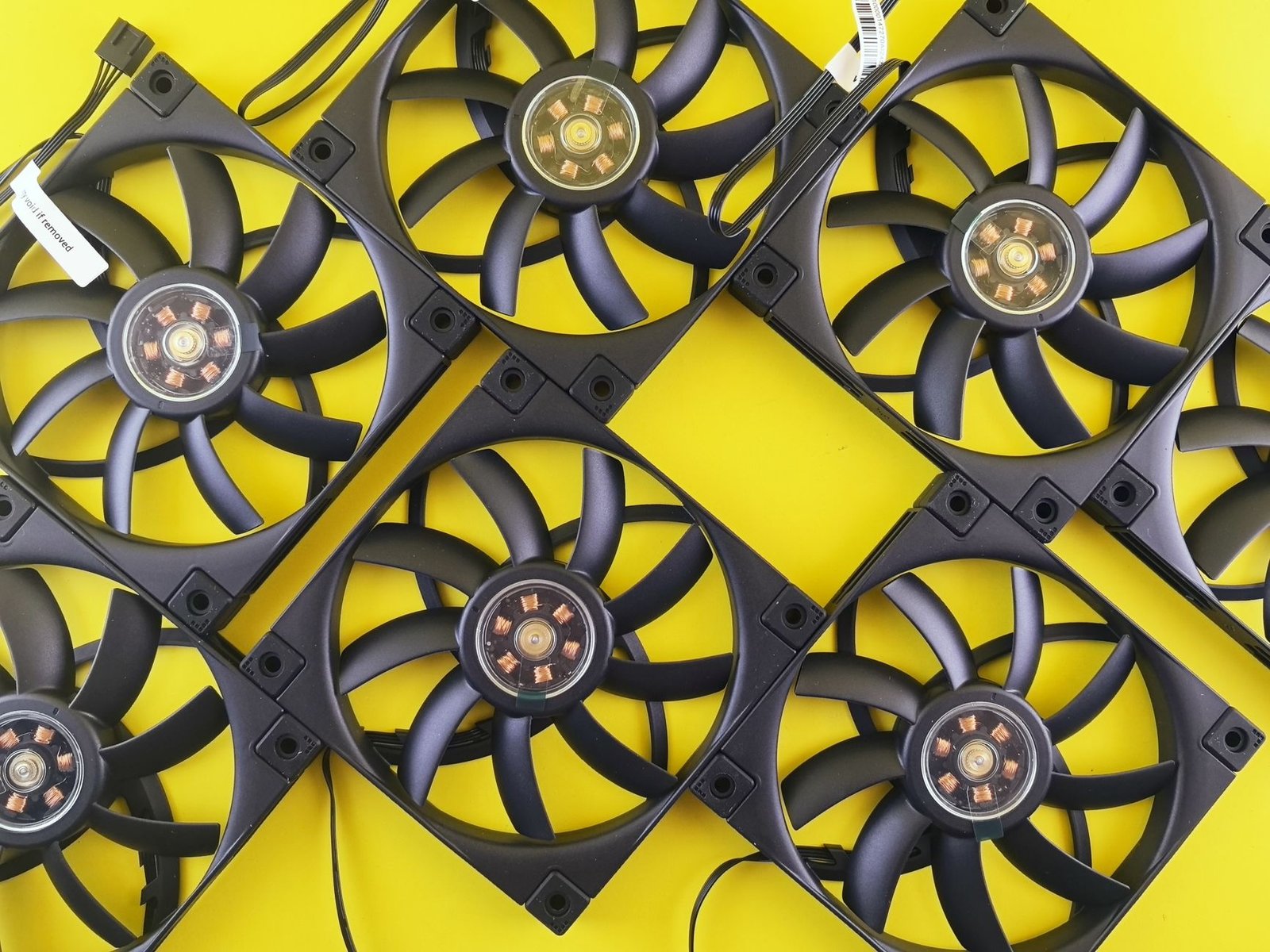
Google Chrome uses a process isolation model that intentionally runs each browser tab as a separate process for security reasons. On a machine with 20 open tabs, Chrome can be running 25+ individual processes simultaneously — each contributing to CPU load and fan noise. It’s not a bug. It’s a very loud security feature.
Thermal Throttling: When Fan Speed Isn’t Enough
Your Processor’s Last Resort Defense
Here’s where things get genuinely strange and a little dramatic. Your computer fan exists to prevent a scenario called thermal throttling — and if the fan can’t keep up, throttling is what happens next. It’s your processor’s last-ditch effort to save itself from literal heat damage.
Thermal throttling is when your CPU or GPU deliberately reduces its own clock speed — essentially running slower on purpose — to generate less heat. It’s the processor choosing to be bad at its job rather than destroy itself. Think of it as a marathon runner slowing to a walk not because they’re tired, but because their body temperature has hit a dangerous threshold.
The fascinating part is that thermal throttling kicks in automatically at specific temperature thresholds — typically around 95-105°C depending on the chip manufacturer. Intel and AMD both build this protection directly into the processor hardware. The fan spinning up is actually attempt number one to avoid this outcome. If the fan spins up and succeeds in cooling things down, throttling never happens. If the fan isn’t fast enough — maybe because it’s clogged with dust, or the thermal paste between the CPU and heatsink has dried out — throttling is the next line of defense.
When your computer suddenly feels sluggish right in the middle of a demanding task, and you can hear the fan roaring, there’s a real chance you’re experiencing active thermal throttling. The machine is slower because it chose to be slower. Heat dissipation failed, and the processor made a decision you didn’t ask it to make.
The Role of Thermal Paste in This Whole Story
Between your CPU and its metal heatsink sits a thin layer of thermal paste — a compound designed to maximize heat transfer between two surfaces that look flat but are microscopically rough. Over time, this paste dries out and cracks, reducing heat dissipation efficiency by up to 40% in some cases. The result? The same workload that used to run cool now runs hot. Your fan spins faster. Throttling kicks in sooner. The laptop that used to handle video editing now struggles with browser tabs. The fan didn’t change. The hardware didn’t change. The paste changed.
Dust, Airflow, and the Cooling System Conspiracy
Your computer’s cooling system is an engineering marvel that most people never think about until it starts screaming. The design of fans, heatsinks, heat pipes, and ventilation channels is carefully calculated to move a specific volume of air past heat-generating components at a specific rate. When anything disrupts that calculated airflow, the entire system compensates — and you hear it.
Dust is the silent saboteur. A laptop that’s a year old in a normal home environment can accumulate enough dust in its intake vents to meaningfully reduce airflow. The fan doesn’t spin faster because more heat is being generated — it spins faster because it has to work harder to move the same amount of air through a partially blocked path. It’s the difference between breathing normally and breathing through a slightly pinched straw. You can still breathe, but your body has to work harder.
The geometry of where you use your laptop also matters more than most people realize. Using a laptop on a bed or couch covers the bottom vents entirely, immediately reducing intake airflow and sending processor temperatures climbing. That fan noise that starts ten minutes into your Netflix binge isn’t dramatic — it’s physics. The cooling system has lost part of its air supply and is compensating the only way it knows how: faster, louder.
Desktop computers have a slight advantage here because their larger cases allow for more airflow volume and physically larger, slower-spinning fans that can move more air with less noise. But desktops develop their own dust problems — particularly on GPU heatsinks and CPU coolers — that can cause the same cascade of thermal response. The GPU temperature spike during gaming that makes your desktop fan roar is that same chain reaction playing out at a larger scale inside a bigger box.
Frequently Asked Questions
Why does my computer fan speed up just from opening a browser?
Modern browsers like Chrome and Firefox are surprisingly CPU-intensive. When you open a browser, it launches multiple background processes simultaneously — rendering engines, JavaScript interpreters, extension runners, and sync services. This cluster of activity causes an immediate CPU usage spike, which generates heat, which triggers your fan. Add a few loaded tabs and you’ve got a sustained thermal load that keeps the fan elevated well above idle speed.
Is it bad if my computer fan is always running loud?
Consistently high computer fan speed isn’t normal and is worth investigating. It could mean dust is blocking airflow, thermal paste has dried out, a background process is consuming excessive CPU cycles, or your machine is simply underpowered for what you’re asking it to do. Occasional loud bursts are fine — they mean the cooling system is doing its job. Constant roaring suggests the system is perpetually overwhelmed, which can shorten hardware lifespan over time.
Can I control my computer fan speed manually?
Yes, on most systems you can. Windows users can use tools like SpeedFan or MSI Afterburner (for GPUs) to create custom fan curves. Mac users have less native control, but apps like Macs Fan Control allow manual adjustments. Be cautious though — overriding your system’s thermal management to keep fans quieter means your components run hotter. The fan noise is annoying, but it’s genuinely protecting your hardware from sustained high temperatures.
Why does my laptop fan spin up even when I’m not doing anything?
This is almost always caused by background processes running without your direct involvement. Common culprits include automatic system updates downloading or installing, antivirus scans running on a schedule, cloud sync services like Dropbox or OneDrive indexing new files, and apps that failed to properly enter sleep mode. Open Task Manager or Activity Monitor, sort by CPU usage, and you’ll likely catch the invisible offender driving that CPU usage spike and the resulting fan response.
Does higher computer fan speed mean my laptop is dying?
Not necessarily — but it can be an early warning sign worth taking seriously. A sudden permanent increase in baseline computer fan speed, especially if accompanied by slower performance, is often a sign of dried thermal paste, accumulated dust, or thermal throttling becoming a regular occurrence. If your fan sounds different than it used to under the same conditions — louder, more constant, or making grinding noises — it’s worth having the machine cleaned and inspected before a minor thermal problem becomes a dead component.
✅ The Bottom Line
Your computer fan speed is one of the most honest performance indicators your machine has — a real-time audio readout of how hard your CPU and GPU are working and how well heat is being managed. When a demanding app launches, electrical resistance in your processor generates heat almost instantly, thermal sensors detect the rise, and your fan motor gets the order to spin faster. Dust, dried thermal paste, background processes, and poor airflow can all make this reaction more dramatic and more frequent. Next time your laptop sounds like it’s about to achieve liftoff, remember: it’s not complaining. It’s working exactly as designed.
Final Thoughts
There’s something weirdly satisfying about understanding what your computer fan speed is actually telling you. That sudden whir isn’t random mechanical noise — it’s a real-time report from inside your machine, a thermal story unfolding in milliseconds every time you make a demand on your hardware. Whether it’s Chrome eating a suspicious number of CPU cycles or a layer of dust silently strangling your airflow, the fan always knows. Computers are remarkably transparent about their stress if you know how to listen. So here’s a question worth thinking about at 3am: when did you last clean out your laptop’s vents — and is your fan trying to tell you something right now?